Download and Install IQ Option App for Laptop/PC (Windows, macOS)
Writen By

Online Trading Platform Researcher and Guide Writer
Researches broker platforms and trading account Systems.
If you want to run IQ Option from a laptop but aren’t sure which build fits your setup, choosing between the Windows installer, the macOS app, or the browser version can slow you down. Desktop apps normally give smoother charts, faster updates and direct notifications, yet they require the right OS version, disk space and installation permissions; preparing your device first prevents common issues like blocked installers or incompatible macOS builds.
This page provides clear, practical steps to safely download and install the IQ Option app for laptop or PC, plus key settings to check after setup. You’ll get guidance on verifying the installer, granting required permissions, enabling updates and basic troubleshooting so you can sign in, test with a demo account and move to live trading only when the desktop app runs correctly.
This page provides clear, practical steps to safely download and install the IQ Option app for laptop or PC, plus key settings to check after setup. You’ll get guidance on verifying the installer, granting required permissions, enabling updates and basic troubleshooting so you can sign in, test with a demo account and move to live trading only when the desktop app runs correctly.
How to Download and Install IQ Option App on Windows
The Desktop app of the trading platform is exactly the same as web version of it. Consequently, there won’t be any problems with trading and transferring funds.
-
Operating system:
-
RAM:
-
Video card:
-
Hard disk space:
Download the official IQ Option app here on your Laptop/PC.
Get the IQ Option App for Windows
Your IQ Option installer will start downloading automatically in a few seconds. If this does not happen, restart the download
After download successfully, follow these steps to install it on your Laptop/PC:
1. Save the IQOption.msi file on your computer.
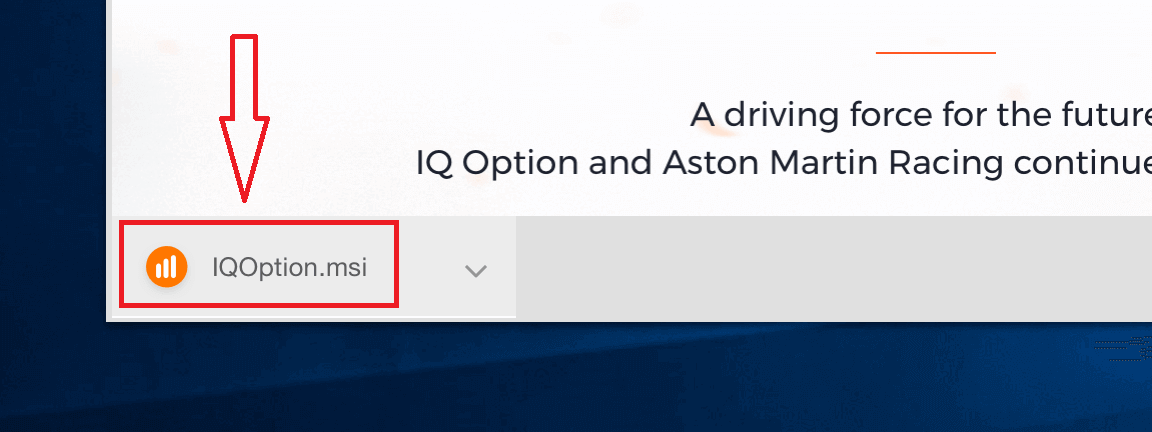
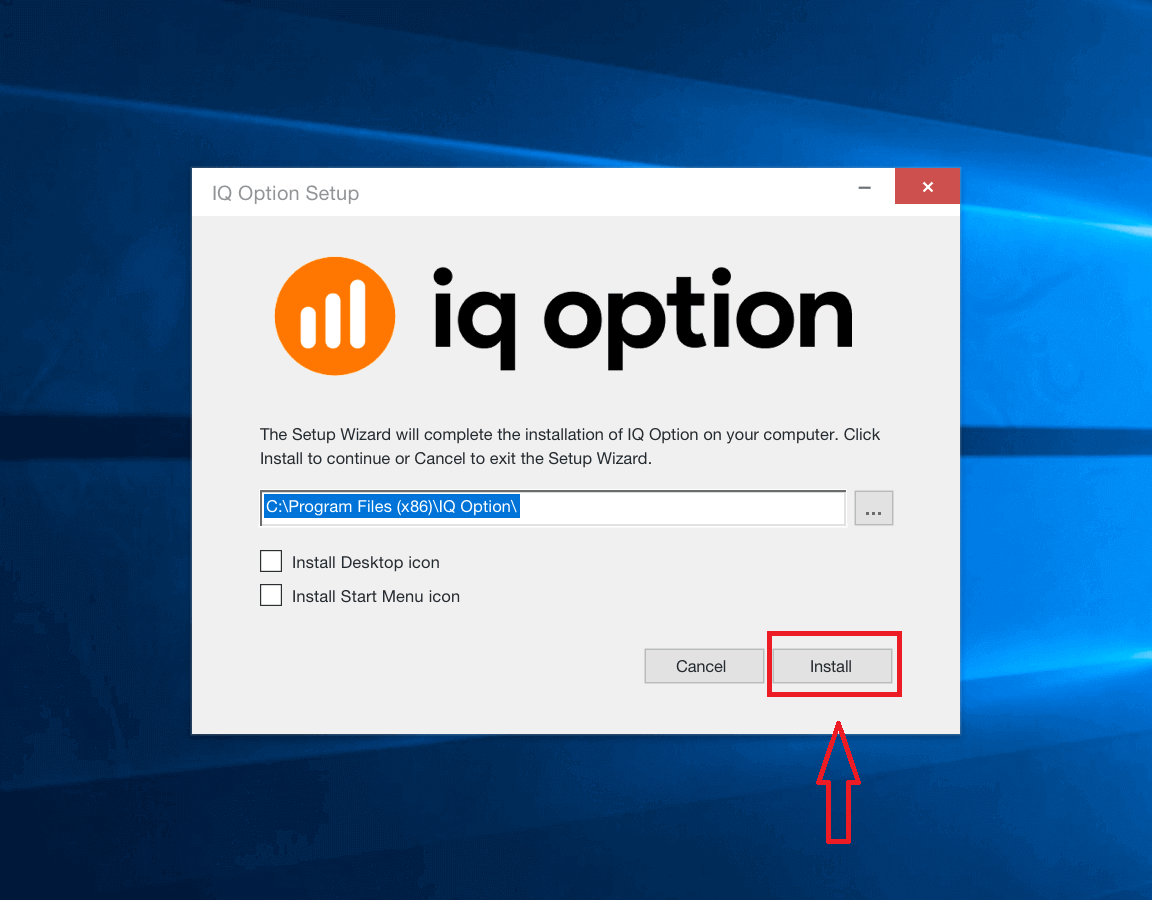
2. Open the downloaded file, choose the installation directory and click “Install”
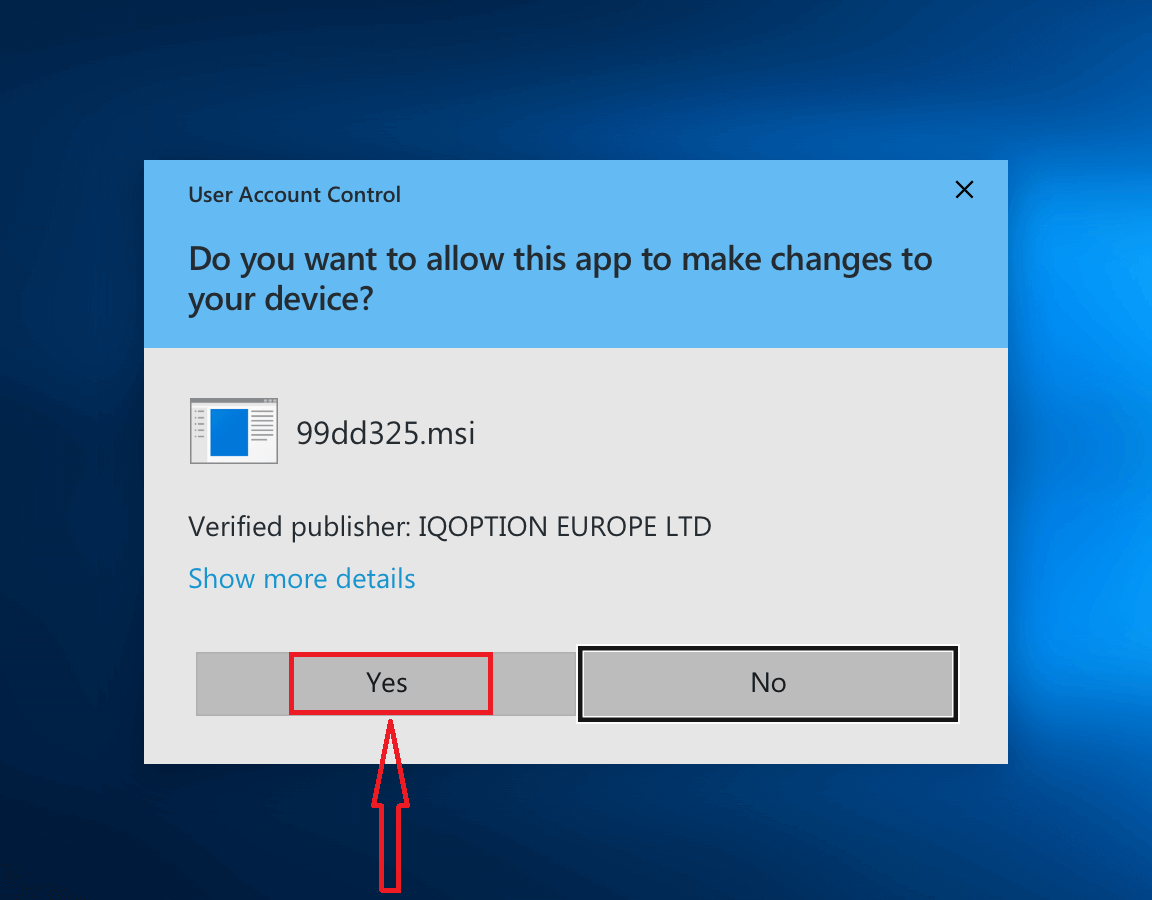
3. Click “Yes” to install the application as an administrator
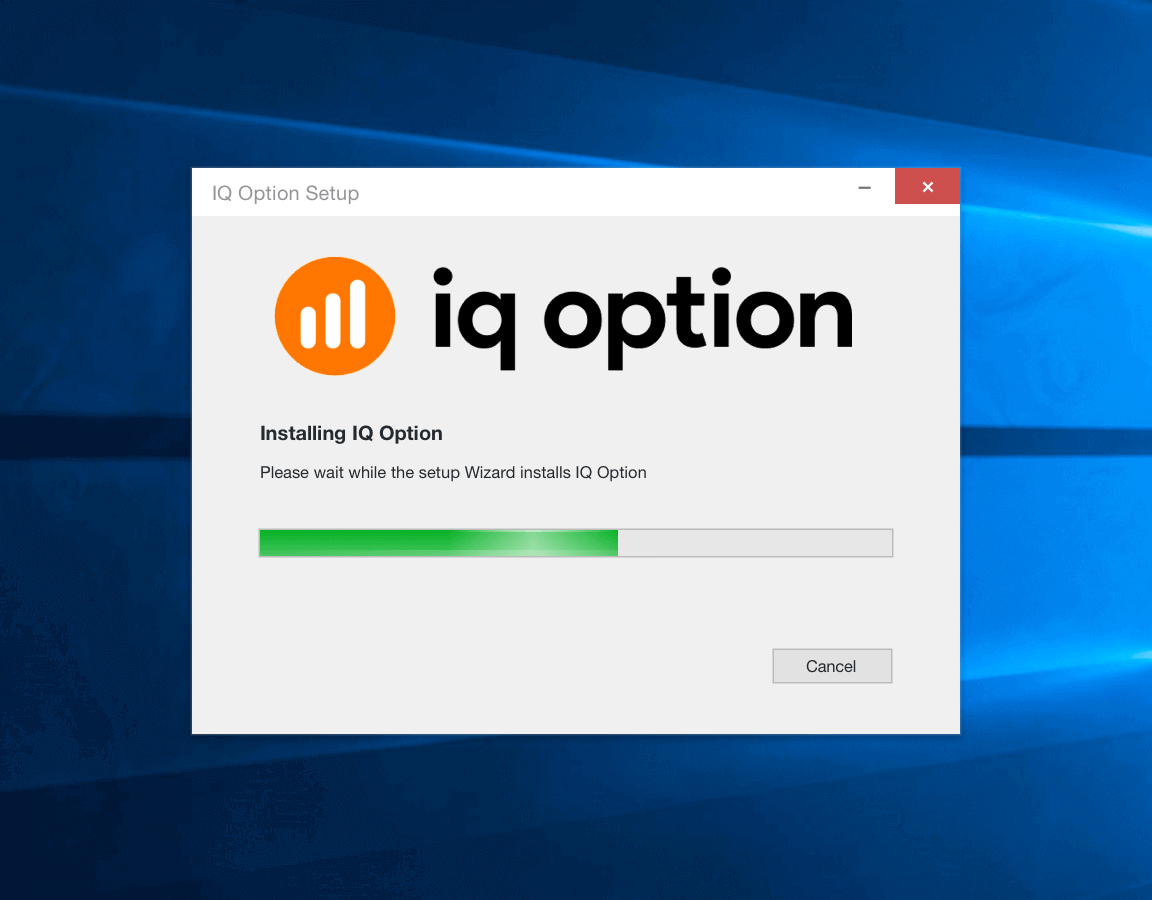
4. Wait until the installation is complete
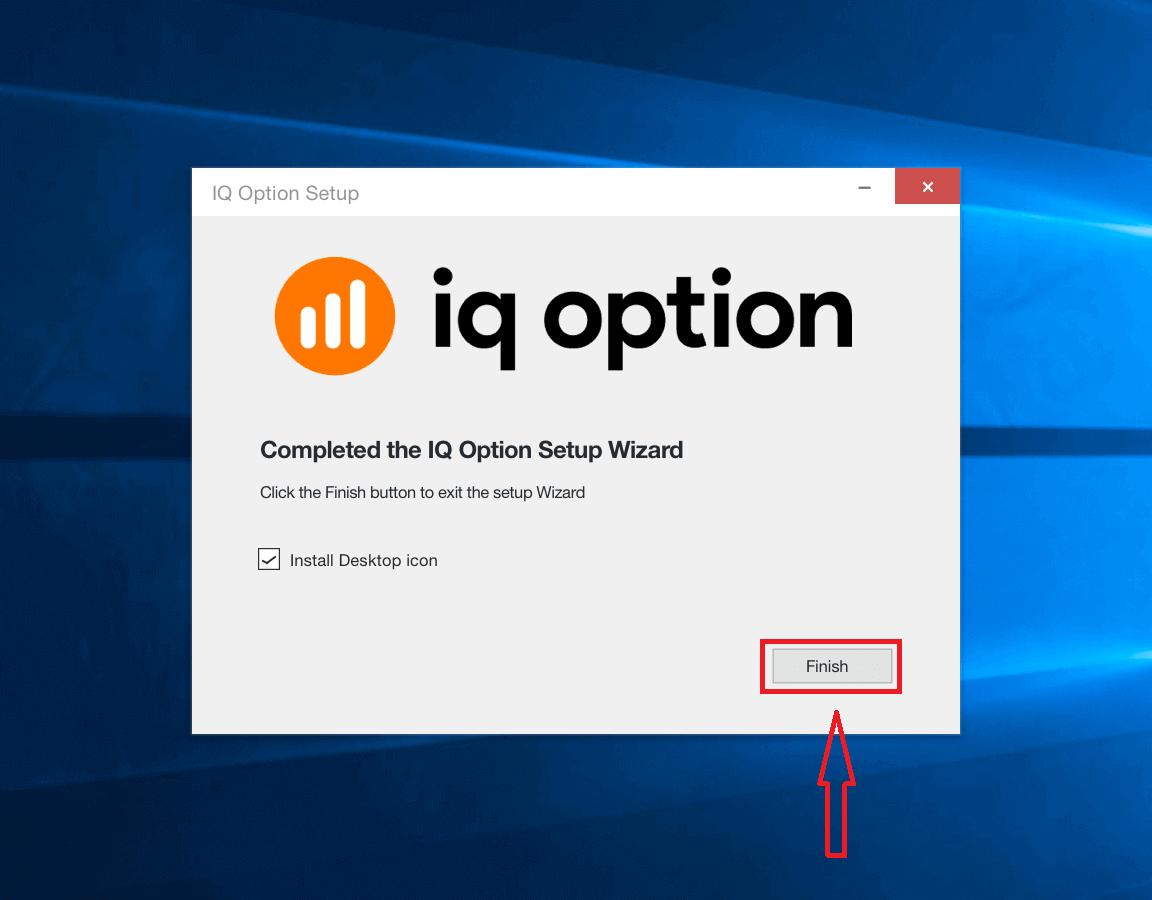
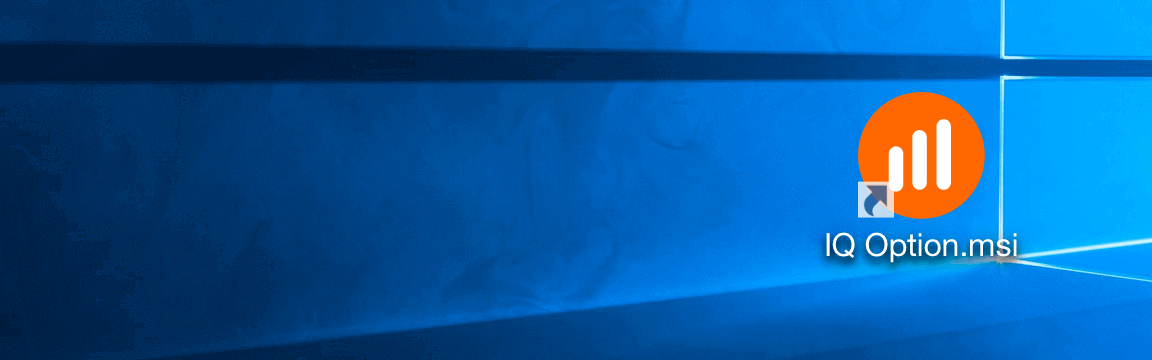
5. Click “Finish” to run the IQ Option installer. You can also launch the application by double-clicking the IQ Option icon on the desktop
6. Log in to the client and start trading. In case you can’t remember your e-mail or password, use the password recovery option or change the password in your profile.
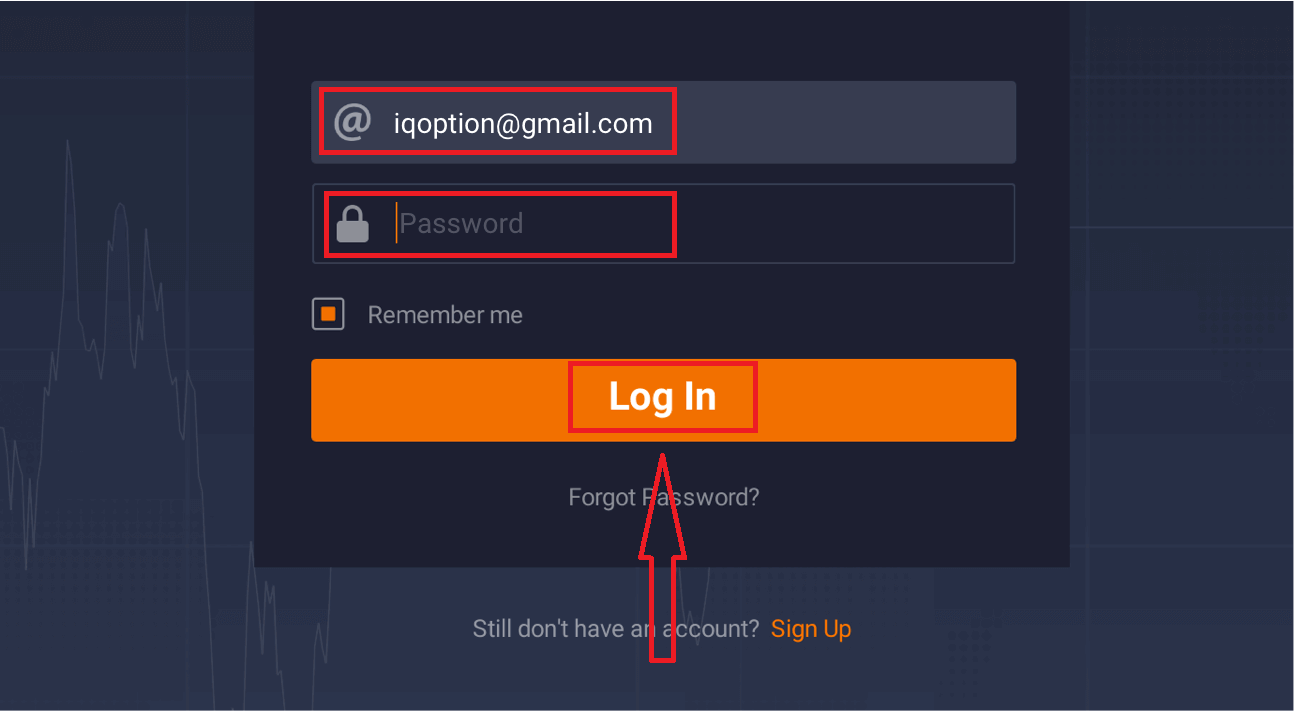
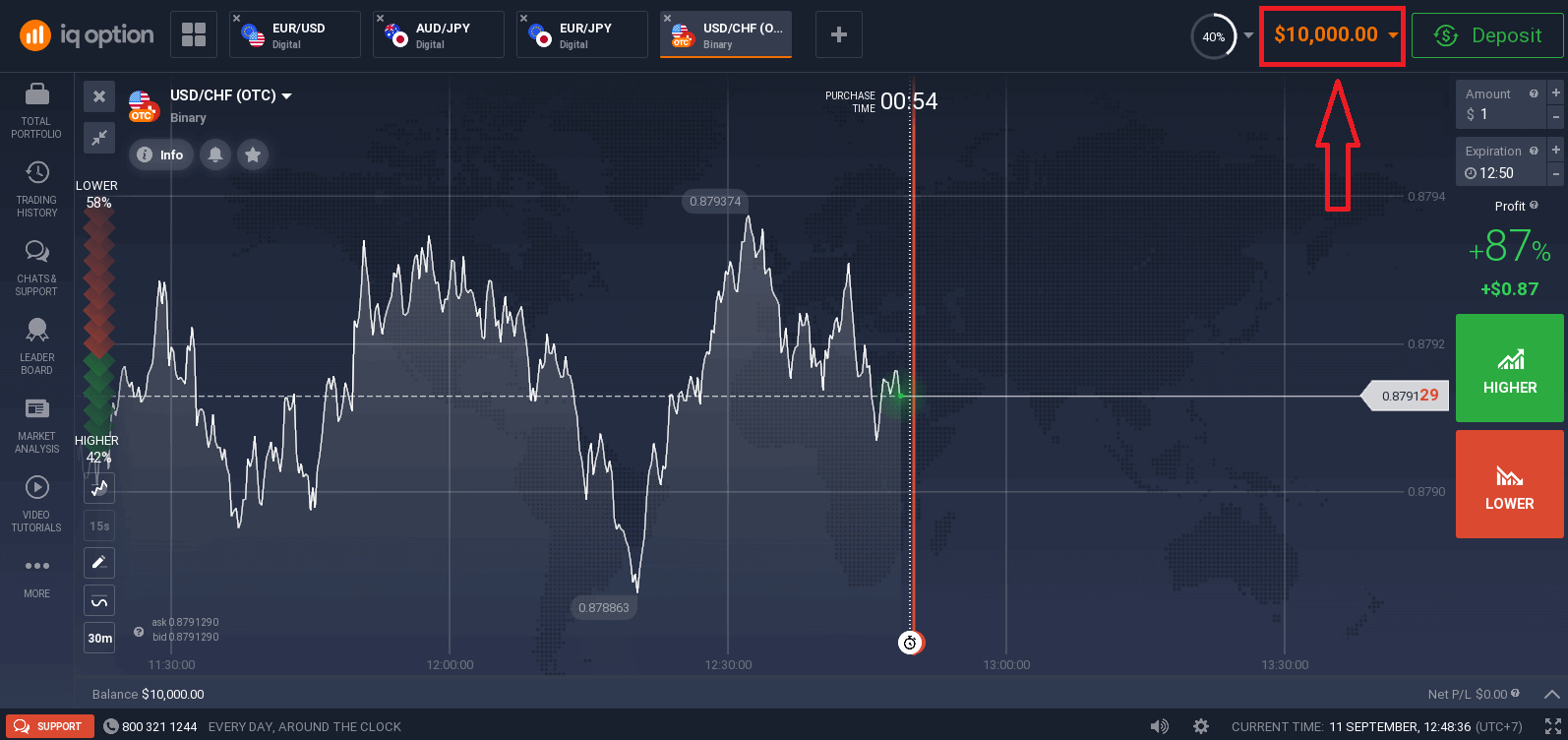
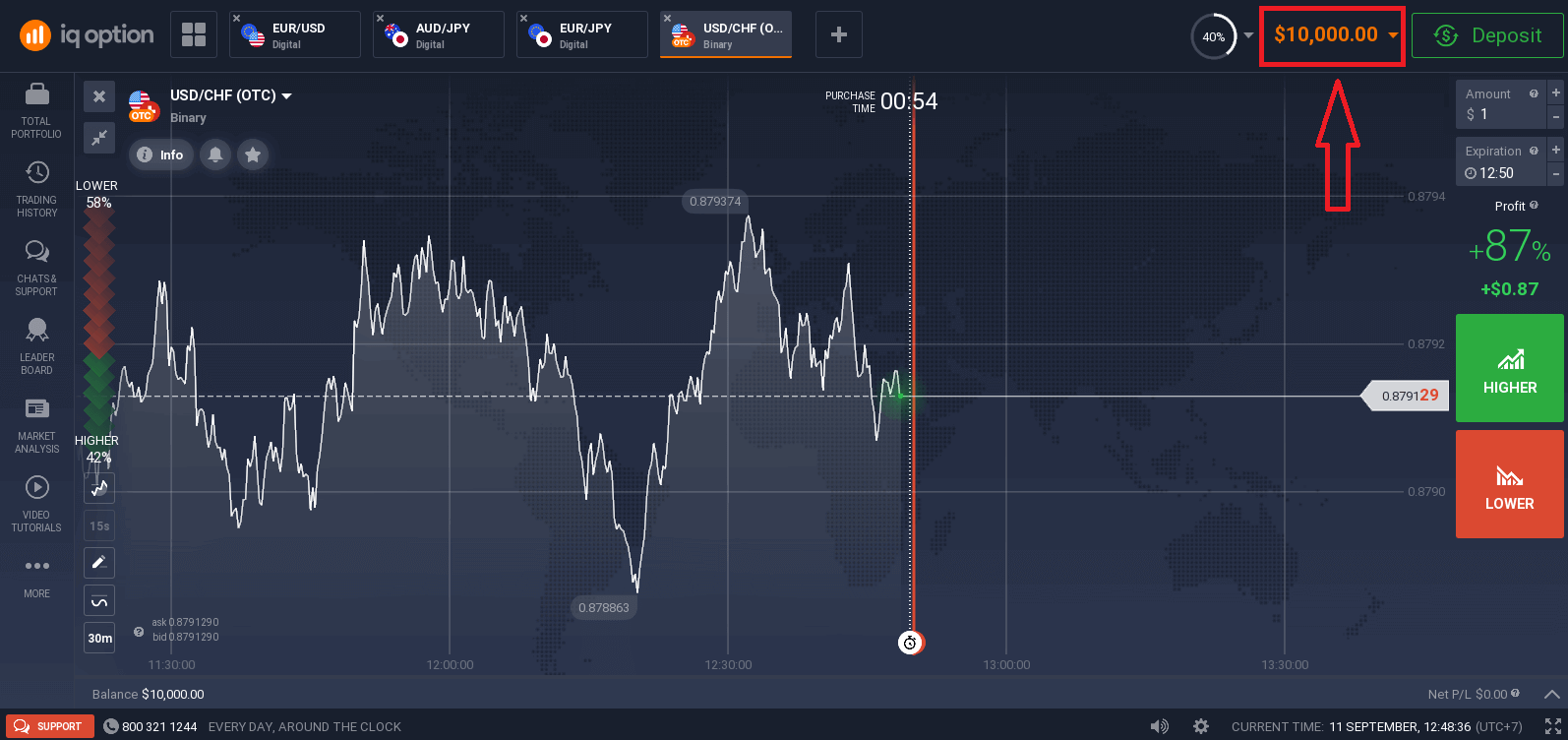
Now you are able to start trading. You have $10,000 in Demo Account, you can also trade on a real account after depositing.
How to Download and Install IQ Option App on macOS
The Desktop app of the trading platform is exactly the same as web version of it. Consequently, there won’t be any problems with trading and transferring funds.
-
Operating system:
-
RAM:
-
Video card:
-
Hard disk space:
Download the official IQ Option app here on your Laptop/PC.
Get the IQ Option App for macOS
Your IQ Option installer will start downloading automatically in a few seconds. If this does not happen, restart the download
After download successfully, follow these steps to install it on your Laptop/PC:
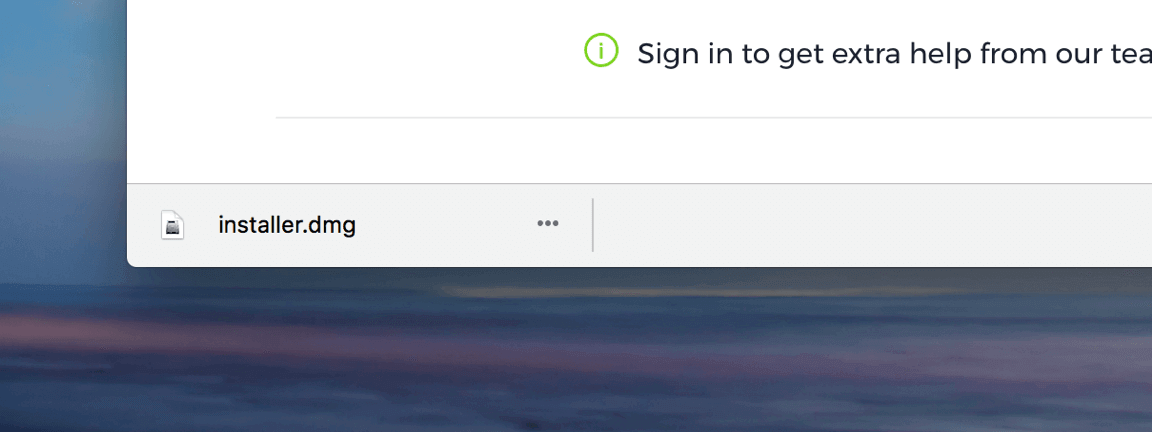
1. Save the IQOption.dmg file on your computer.
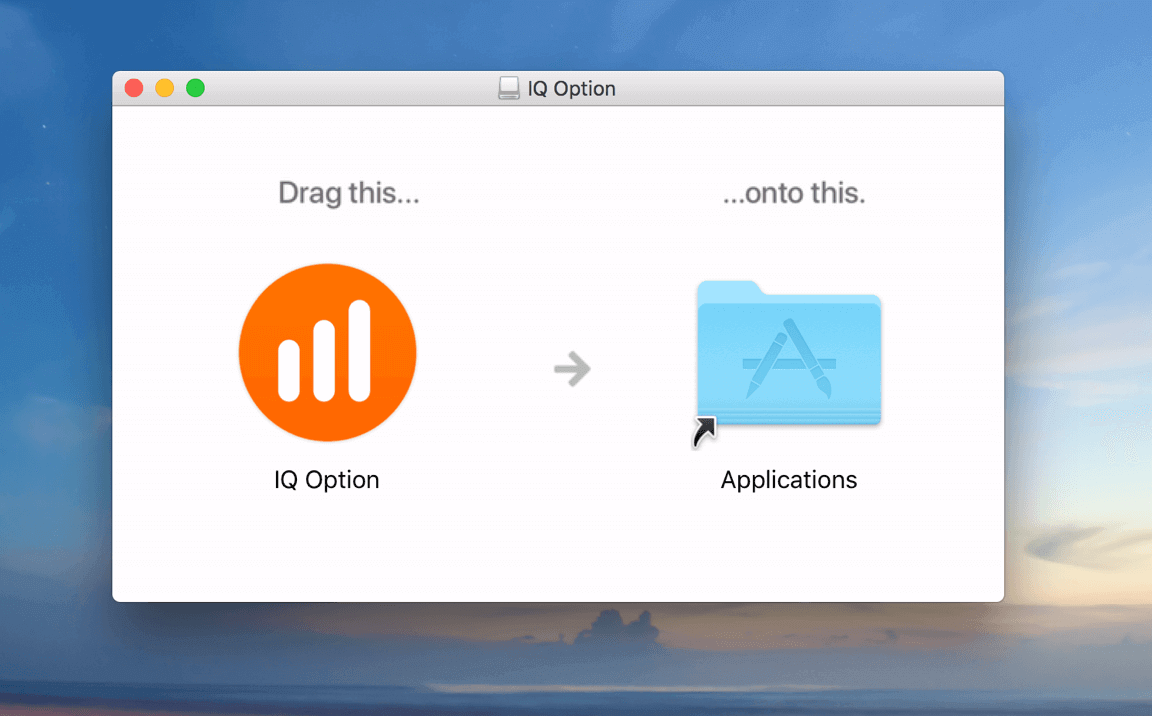
2. Open the downloaded file. Put the IQ Option icon into the Applications folder.
3. Open the downloaded file. Follow all the relevant steps to install the IQ Option app.

4. Log in to the client and start trading. In case you can’t remember your e-mail or password, use the password recovery option or change the password in your profile.
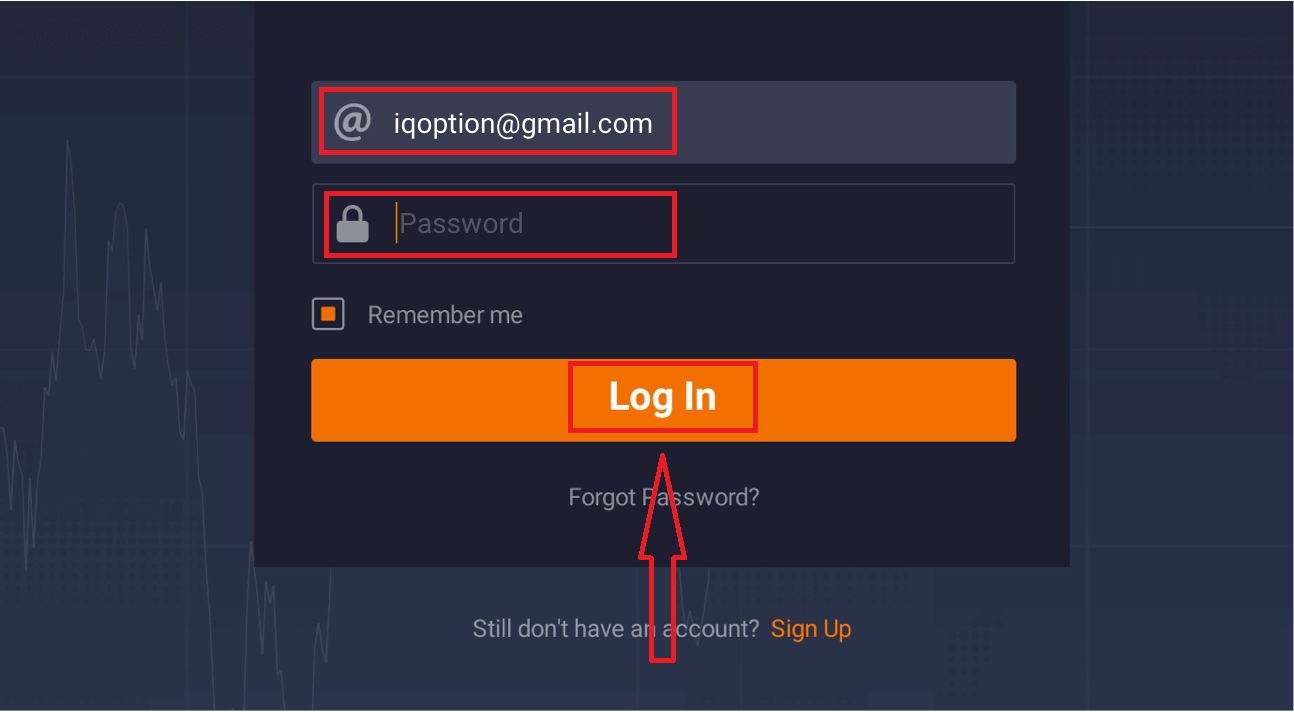
Now you are able to start trading. You have $10,000 in Demo Account, you can also trade on a real account after depositing.
How to Sign up with an Email
1. You can sign up for an account on the platform by clicking the “Sign Up” button in the upper right corner.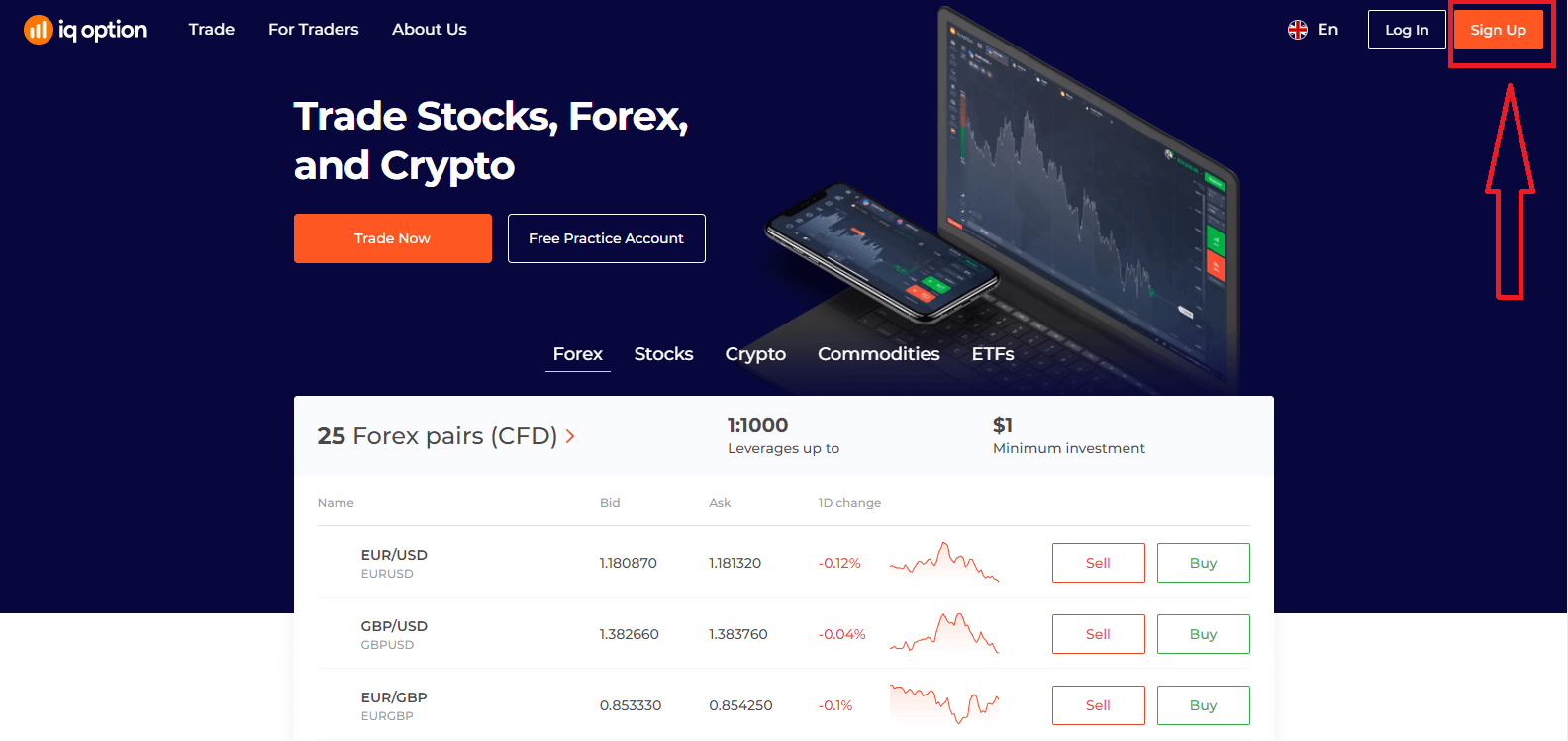
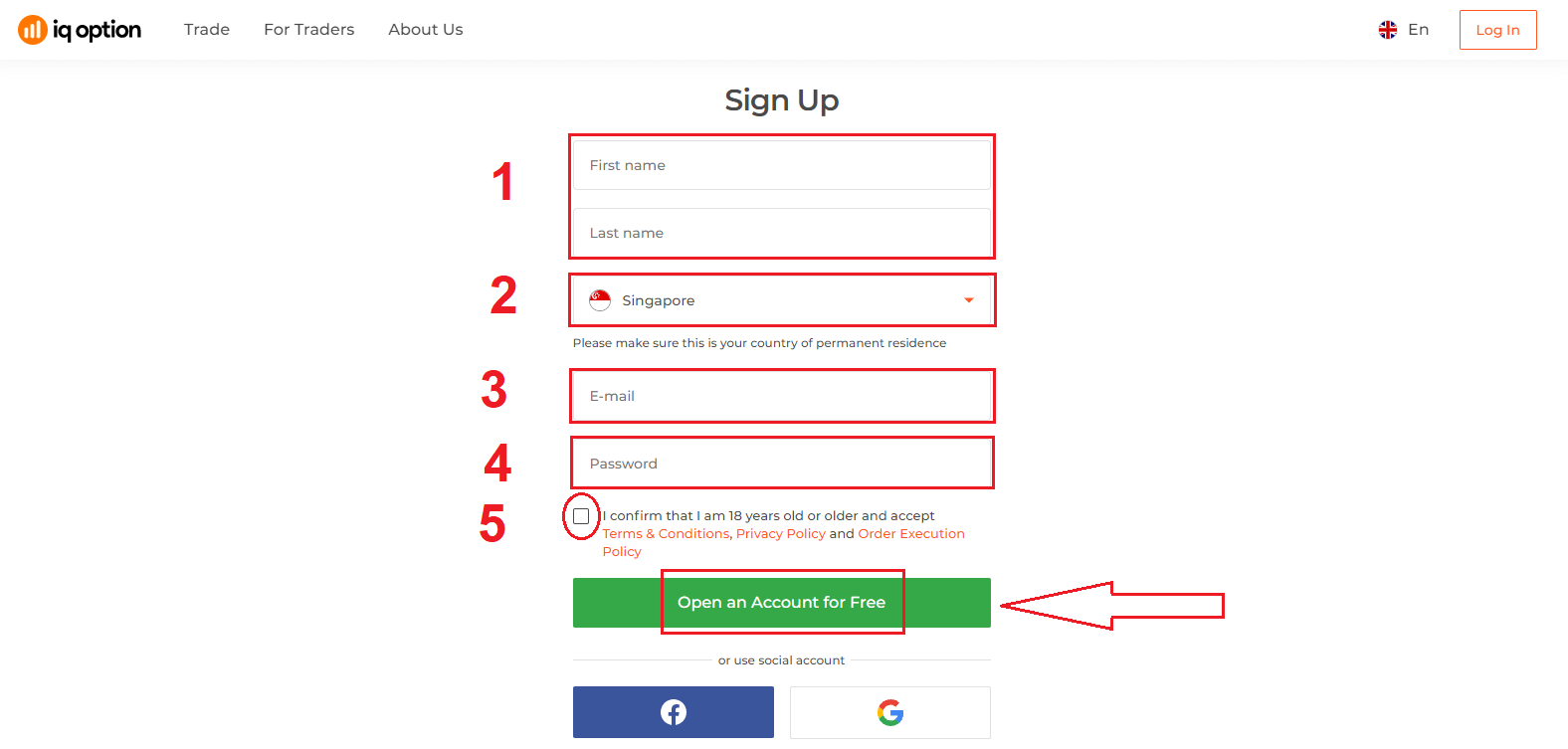
2. To sign-up you need to fill in all the necessary information and click "Open an Account for Free"
- Enter your First name and Last name
- Choose your country of permanent residence
- Enter a valid email address.
- Create a strong password.
- Read "Terms Conditions" and check it
Congratulation! You have registered successfully. Now if you want to use Demo Account, click "Start Trading on practice account".
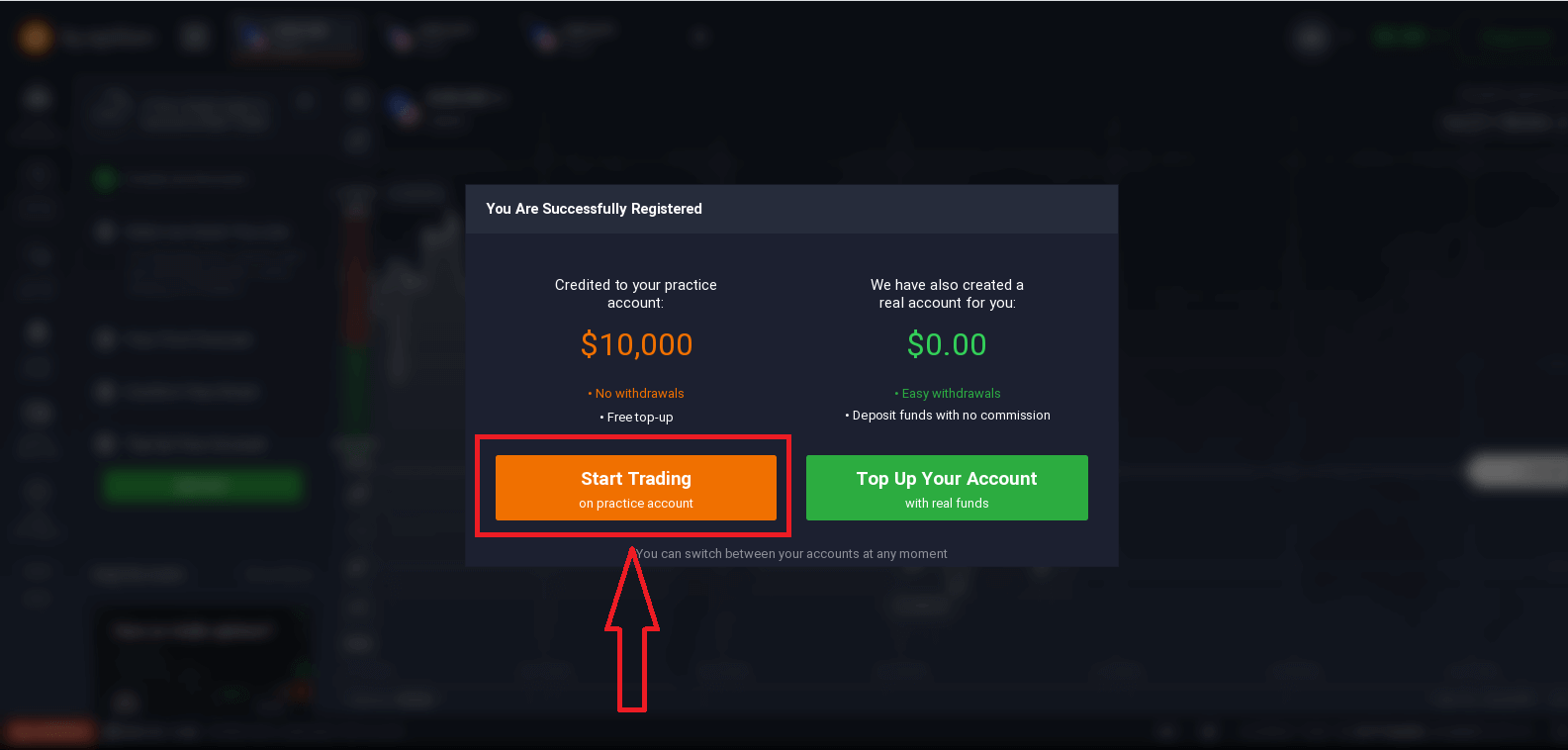
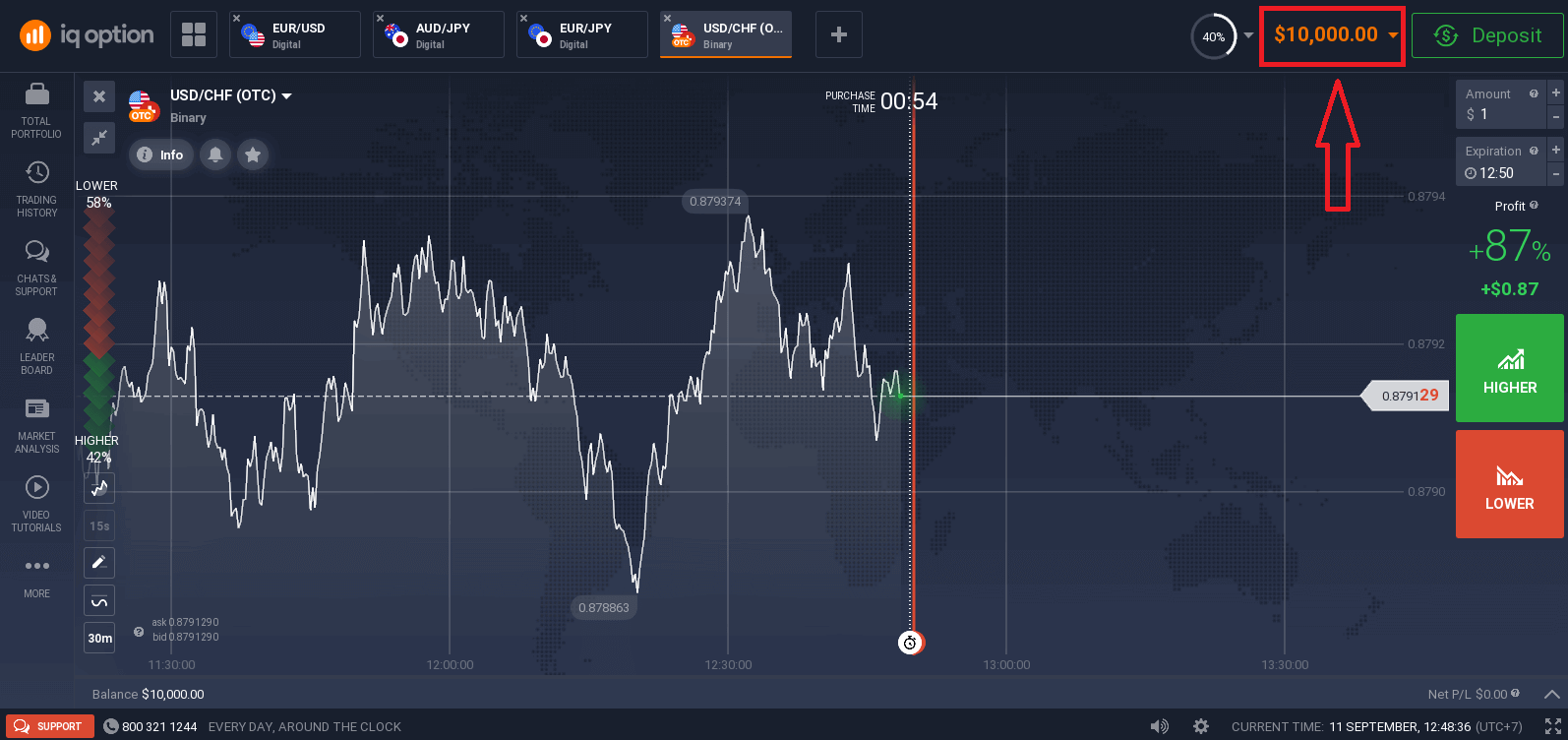
Now you are able to start trading. You have $10,000 in Demo Account. A demo account is a tool for you to get familiar with the platform, practice your trading skills on different assets and try out new mechanics on a real-time chart without risks.
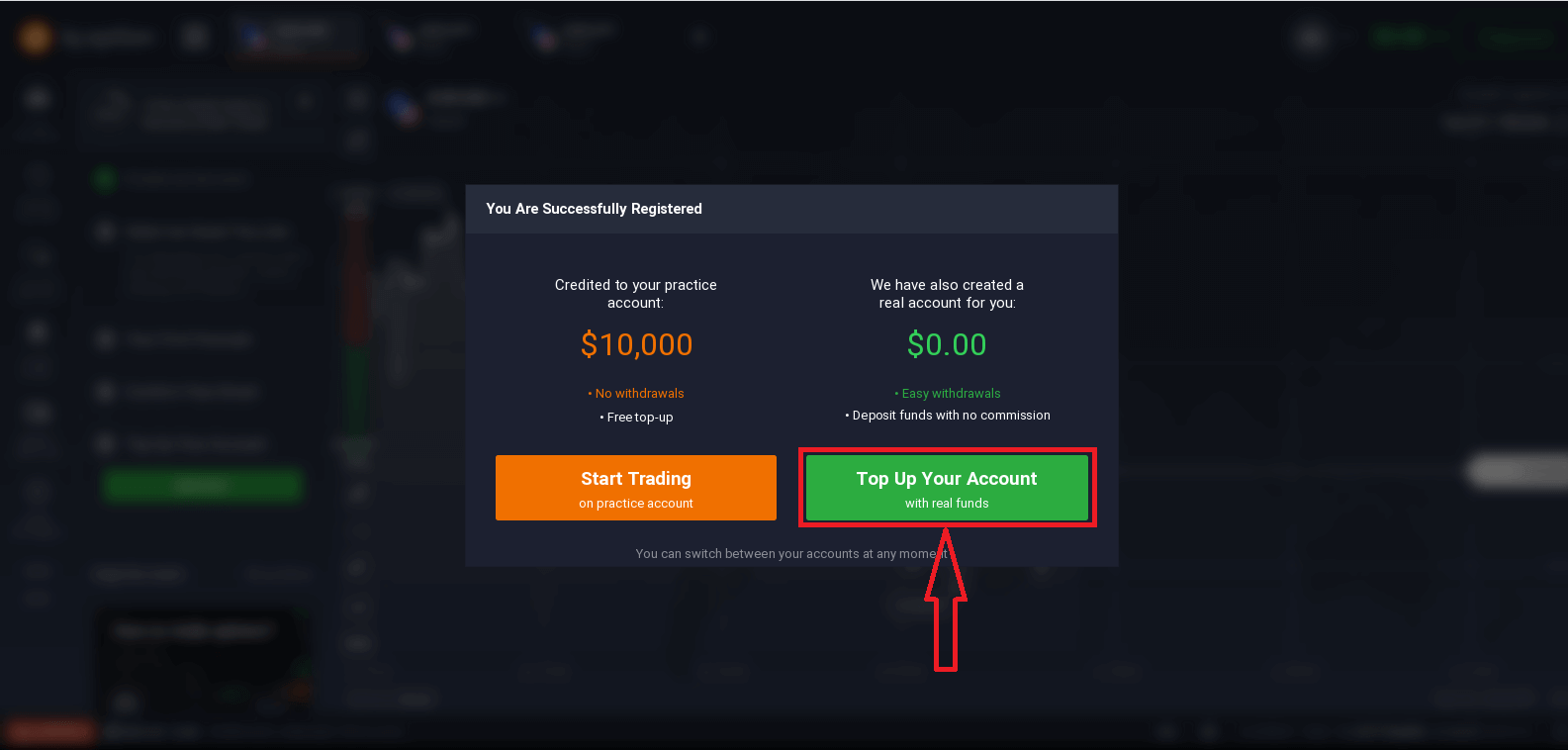
You can also trade on a real account after depositing by clicking "Top Up Your Account with real funds".
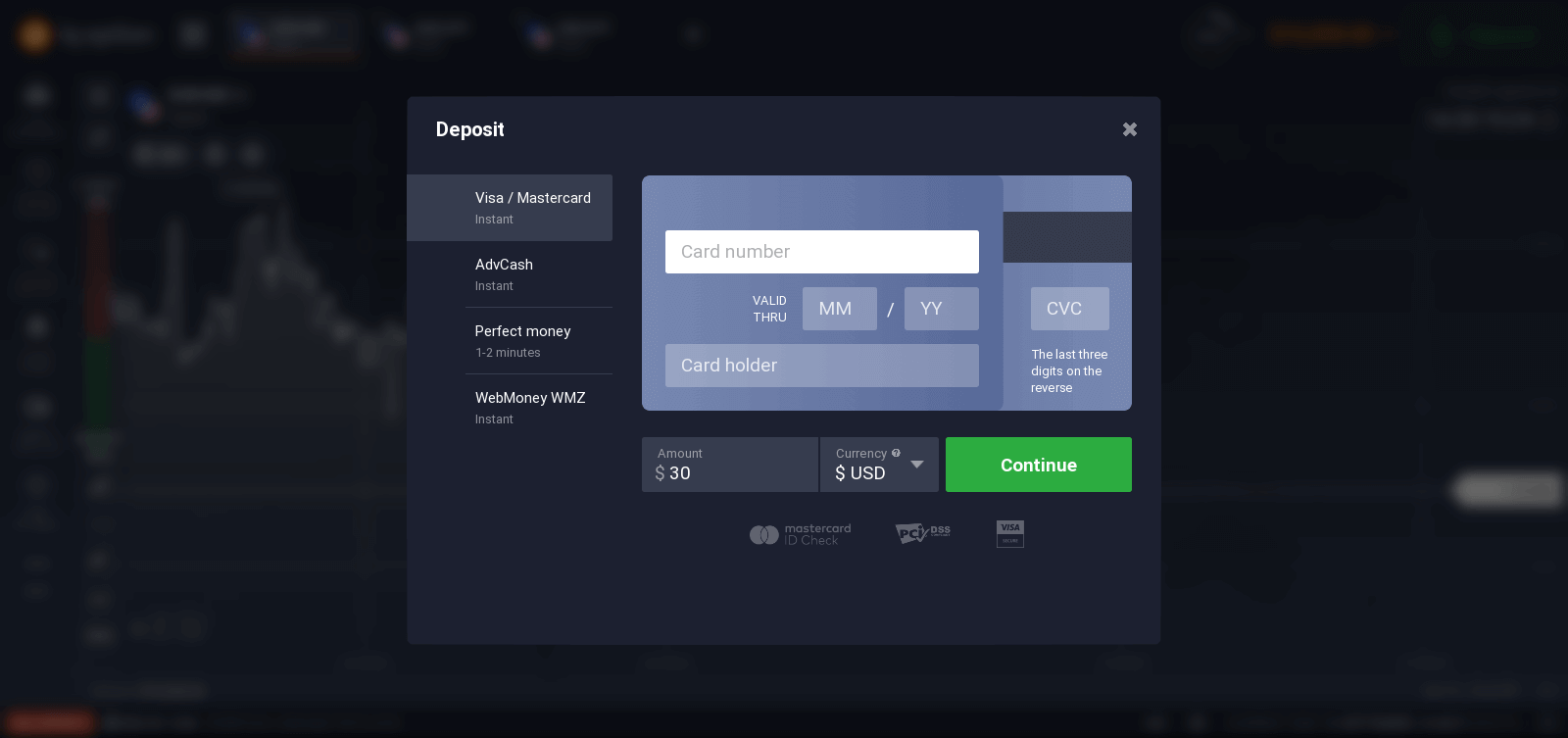
To start Live trading you have to make an investment in your account (The minimum deposit is 10 USD/GBP/EUR).
How to make a Deposit in IQ Option
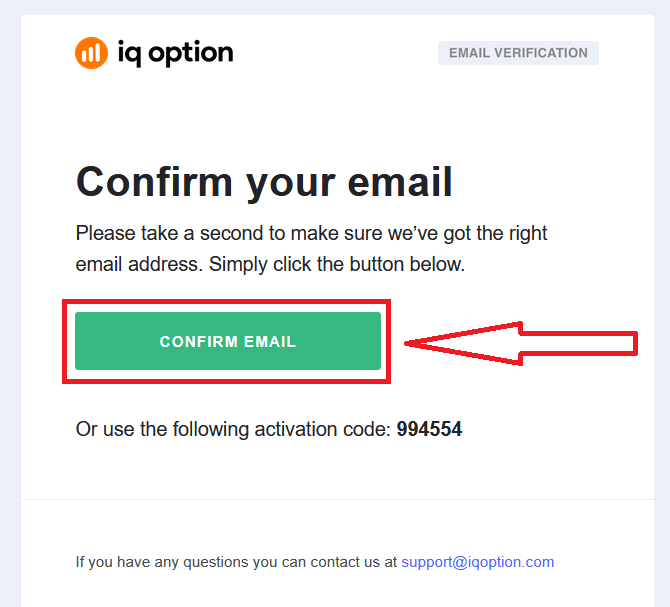
Finally, you access your email, IQ Option will send you a confirmation mail. Click the link in that mail to activate your account. So, you will finish registering and activating your account.
How to Sign up with a Facebook account
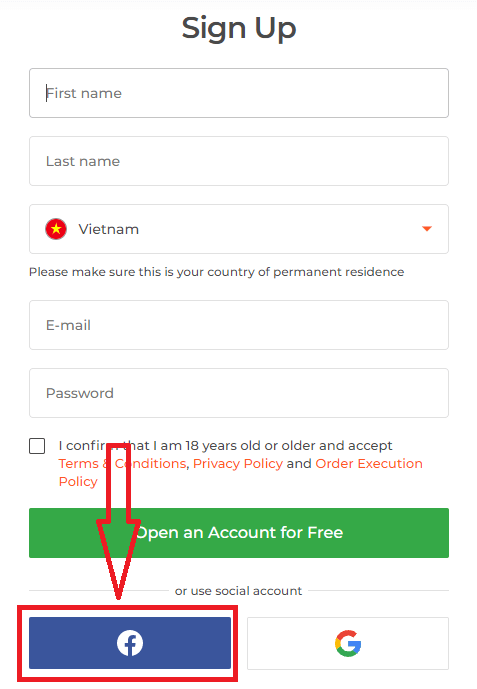
Also, you have an option to open your account through web by Facebook account and you can do that in just few simple steps:1. Click on Facebook button
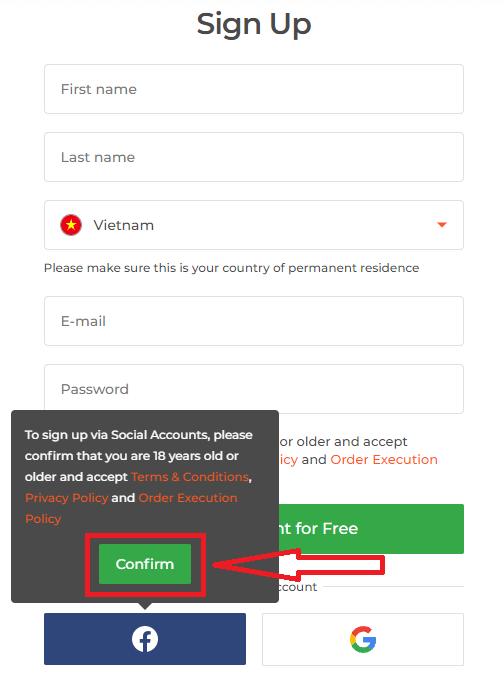
Then It will ask you that you are 18 years old or older and accept Terms Conditions, Privacy Policy and Order Execution Policy, click "Confirm"
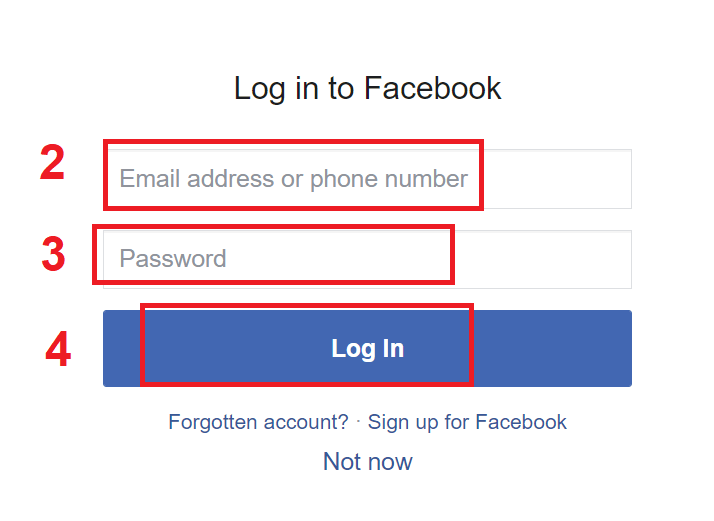
2. Facebook login window will be opened, where you will need to enter your email address that you used to register in Facebook
3. Enter the password from your Facebook account
4. Click on “Log In”
Once you’ve clicked on the “Log in” button, IQ Option is requesting access to: Your name and profile picture and email address. Click Continue...
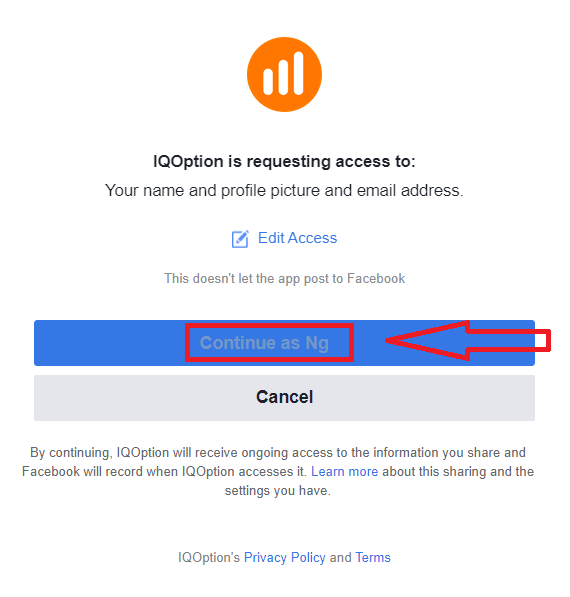
After that You will be automatically redirected to the IQ Option platform.
How to Sign up with a Google account
1. To sign up with a Google account, click on the corresponding button in the registration form.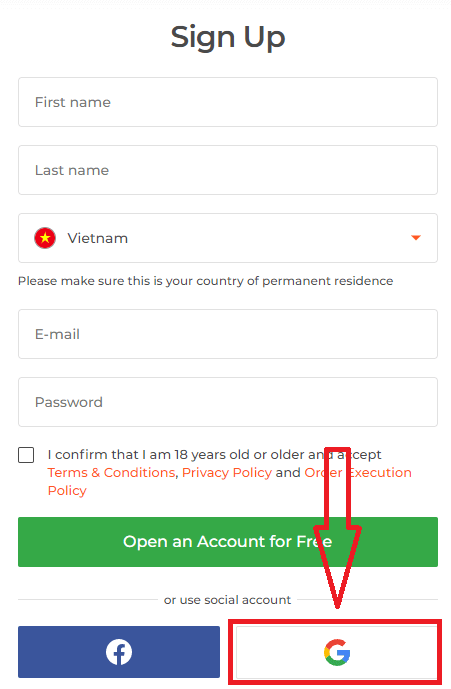
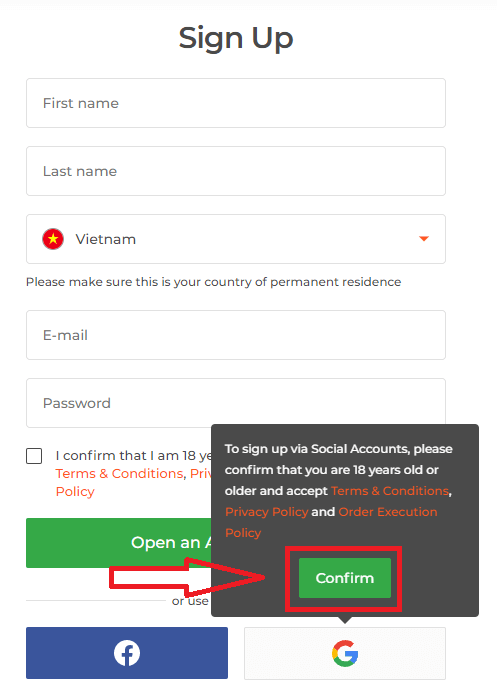
Then It will ask you that you are 18 years old or older and accept Terms Conditions, Privacy Policy and Order Execution Policy, click "Confirm"
2. In the newly opened window enter your phone number or email and click "Next".
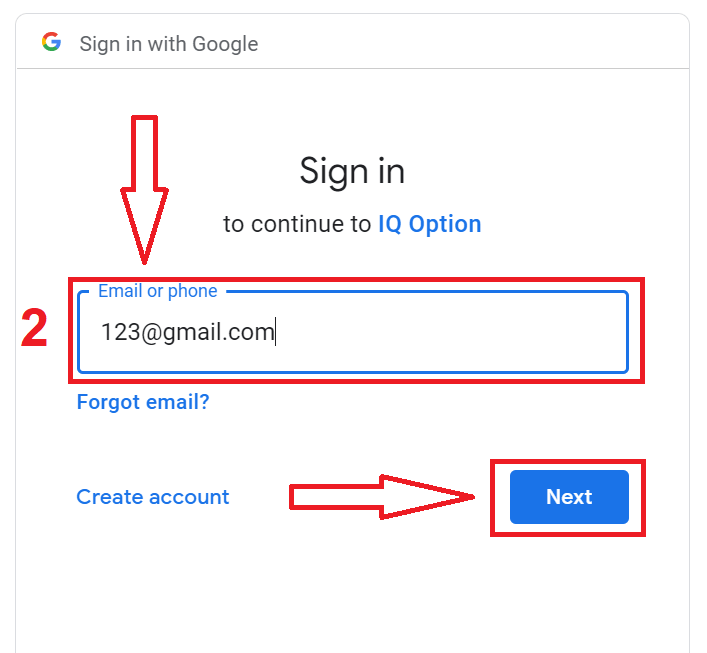
3. Then enter the password for your Google account and click “Next”.
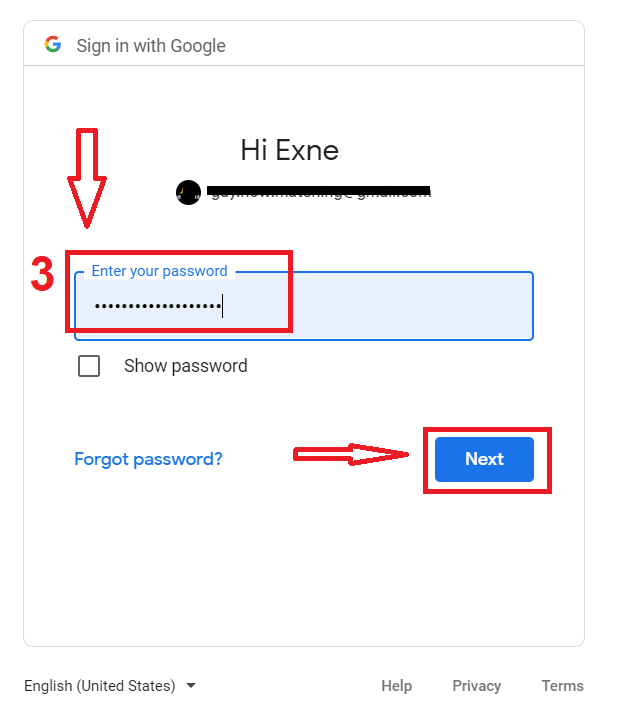
After that, follow the instructions sent from the service to your email address.
FAQs
Download the installer from the official IQ Option site, pick the Windows or macOS package, then run the file with administrator rights. On Windows allow SmartScreen prompts and follow the installer; on macOS open the .dmg and copy the app to Applications, approving it in Security & Privacy if blocked. After install sign in, check updates and try the demo account before trading live.
You need a 64-bit Windows 10/11 or a recent macOS release, at least 4 GB RAM (8 GB recommended), around 2 GB free disk space and a stable broadband connection. A modern dual‑core CPU and current graphics drivers improve charting. Administrator privileges are usually required to install and corporate firewalls may block connections.
Typical causes are a corrupted download, OS security restrictions, antivirus blocking, missing privileges or an unsupported OS build. On Windows try re-downloading, run as administrator and temporarily disable real‑time AV; on macOS use right‑click Open or allow the app in Security & Privacy. If problems persist, check system logs, retry on a different network and contact support; avoid third‑party copies.
Yes. The desktop app accepts the same email and password as the web platform and supports two‑factor authentication. If your account requires verification or has trading restrictions you may need to complete those checks before placing live trades; demo accounts remain accessible immediately.
Only download from the official site, confirm the file’s digital signature or certificate in file properties, and scan the installer with up‑to‑date antivirus software. On macOS rely on Gatekeeper and the signed app certificate. Avoid third‑party sources and unsolicited links; if signatures or file sizes look wrong, delete the file and download again or contact support.